Shed Designer

Design Your Shed in 3D

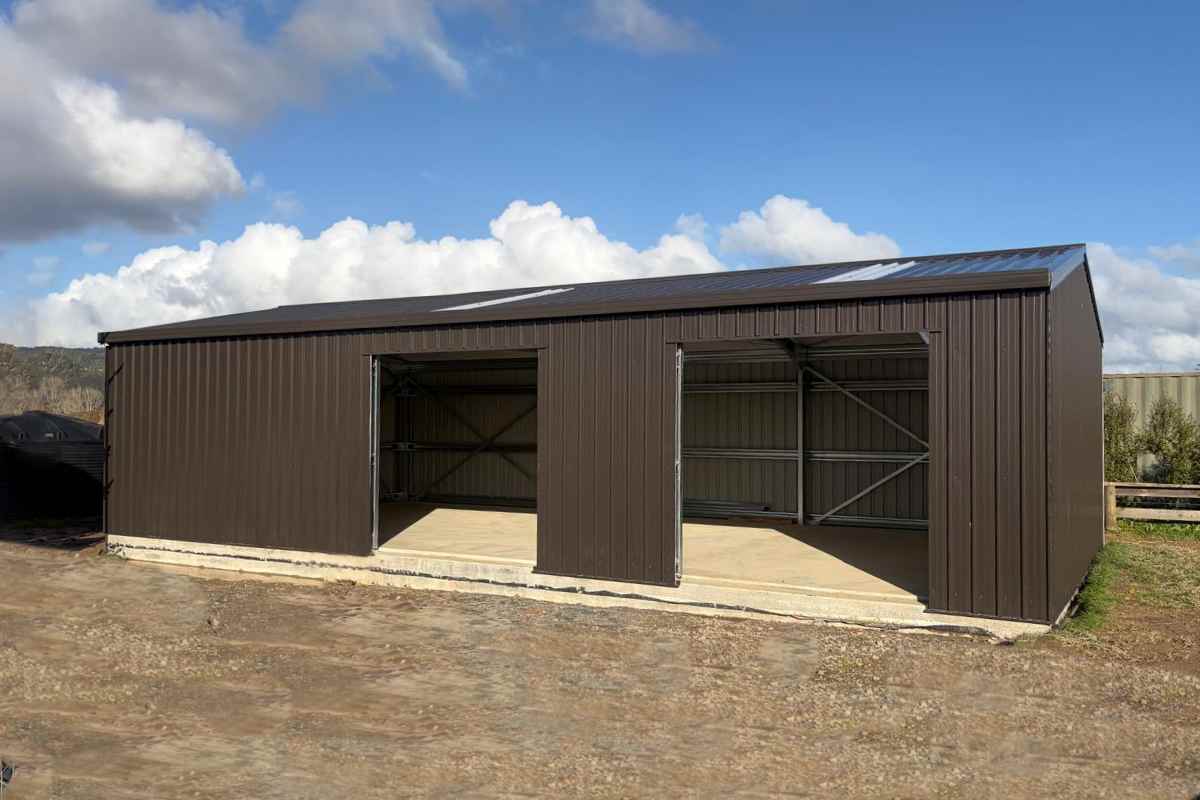
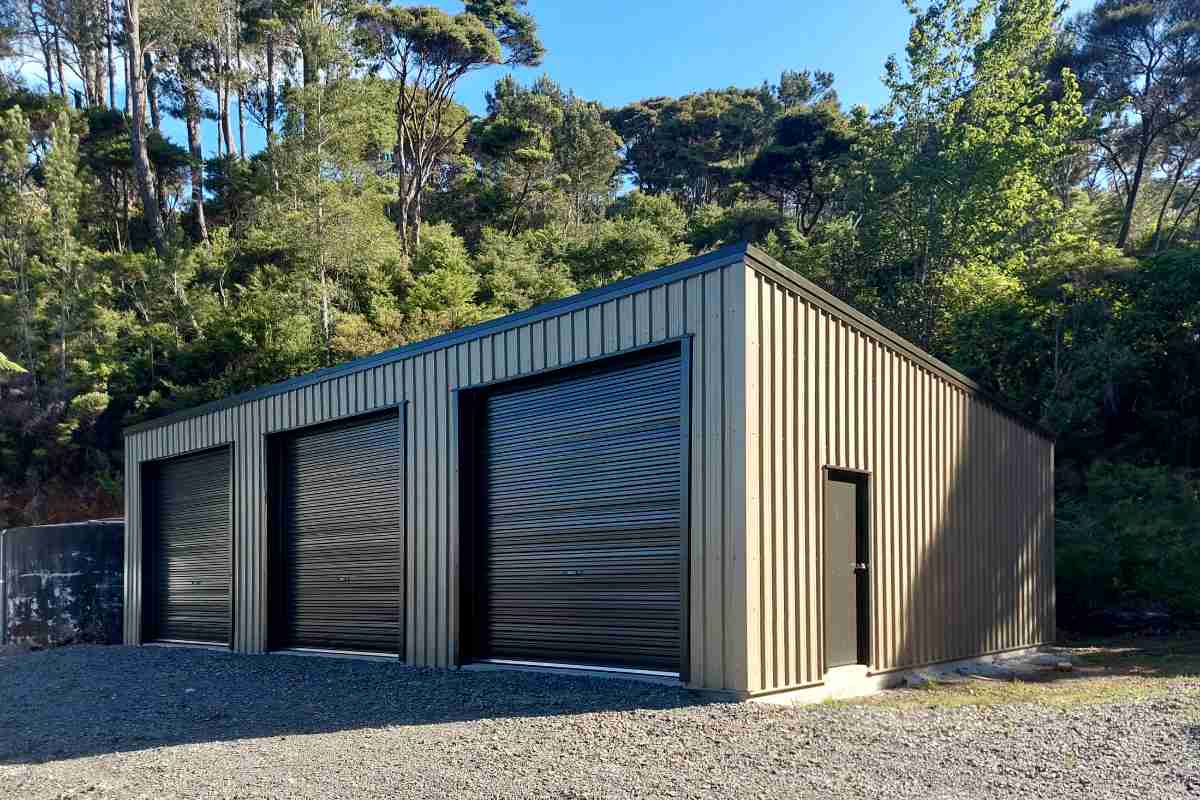
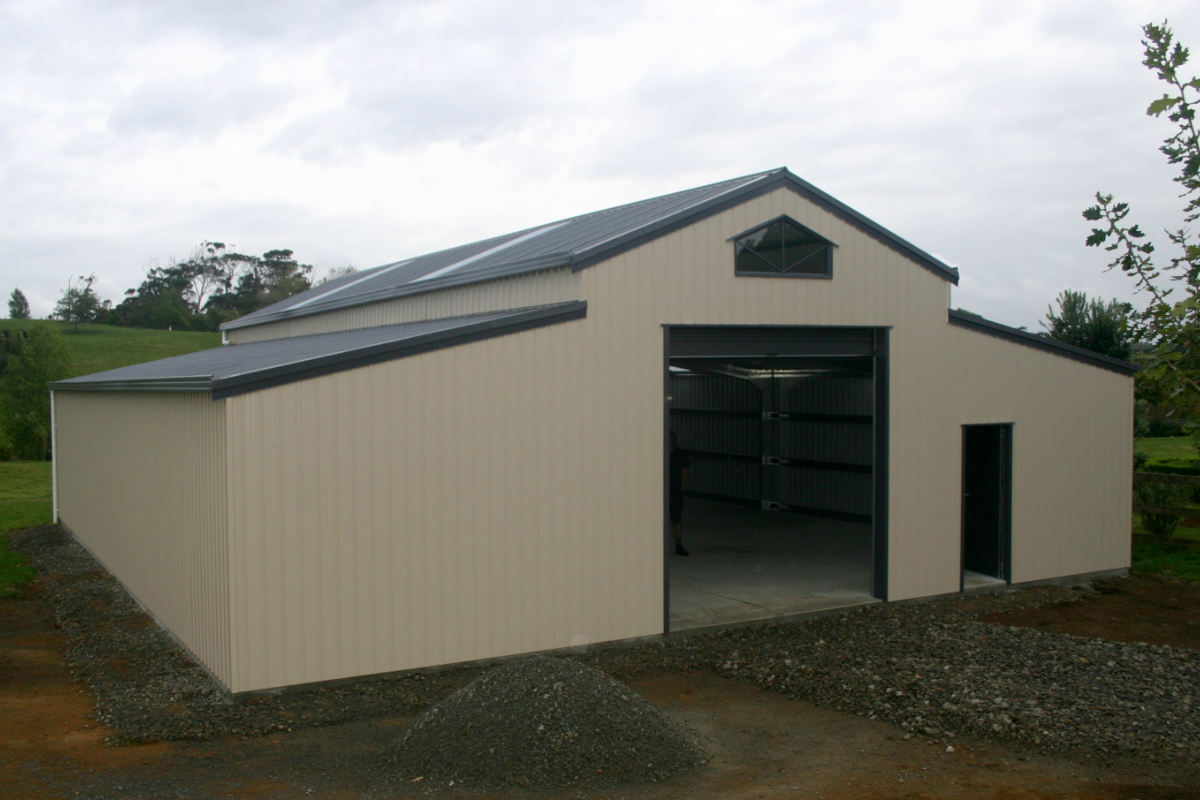
Use our online design tool to create a custom building that suits your needs. You can experiment with different roof styles, change the size and layout and add features such doors and windows, even choose colors to see what your shed or barn could look like in a matter of minutes.

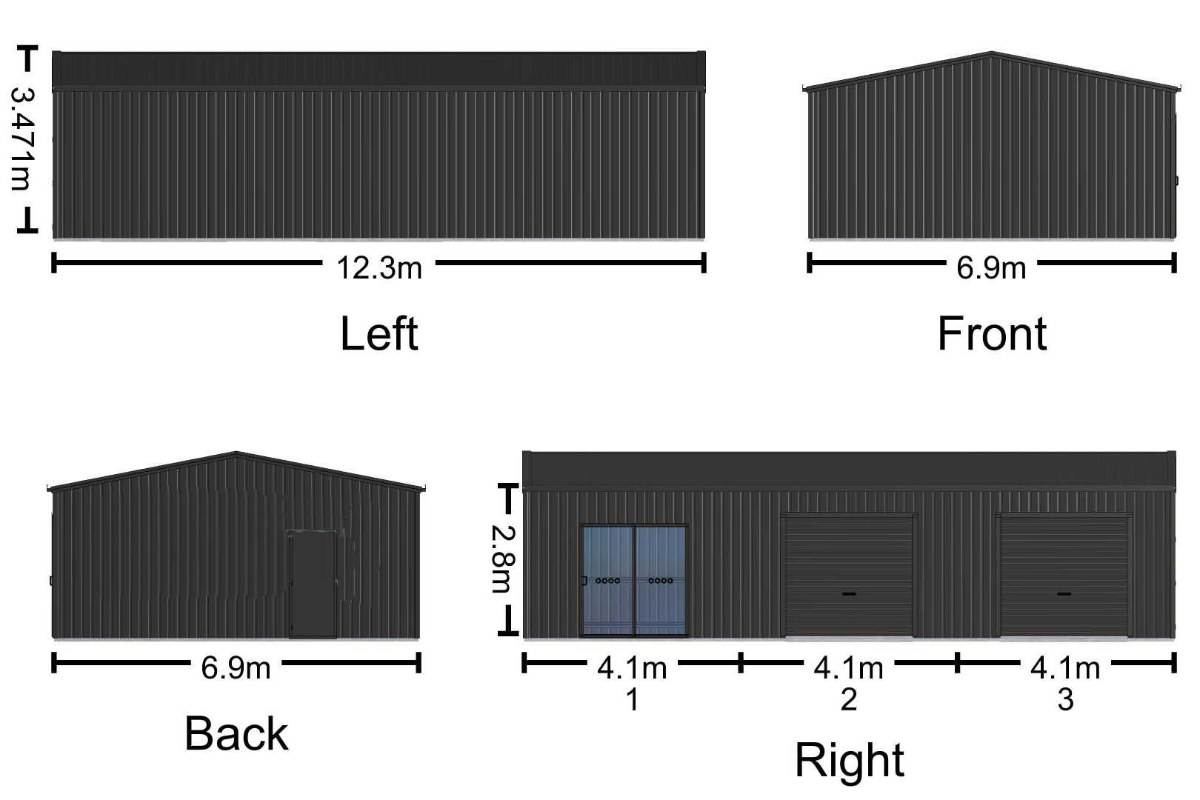
This 3D shed designer makes it easy to explore options and creates a set of elevations for you to send to us by simply hitting the get a quote button this helps us to review your design, check engineering requirements, and provide a firm quote tailored to your specific needs this way when we price your shed we get it right.

How do I design a shed and get a firm quote?

Launch the designer by clicking the button below and start creating your own custom shed design.

3D Shed Designer

Simple Instructions

  • First choose the building type that you like.
  • On the main tool bar at the top left of the screen select the Size button, a menu will appear.
  • Adjust Roof style, building width, length and height then click X to close the menu.
  • On the main tool bar on the left of the screen now select Extras to insert doors and windows.
  • Select a wall, a menu appears, choose an option then in the menu adjust size, click X to close the menu.
  • On the main tool bar on the left of the screen now select Get Quote a menu will appear give us your details scroll and click Submit.
  • We will be in touch soon with your quote it simple as that!

More Instructions

  • You can play around with more tools from the main tool bar on the left of the screen
  • Select the Awnings button, a menu will appear click the visible check box and adjust.
  • Select the Walls button, to remove walls and add internal partition walls instructions are on the menu that appears.
  • Select Mezzanine and click the visible check box and adjust.
  • Select Colours and Sheeting to find simple or advanced colour options.
  • Select Options choose an item and click the position in your shed where it needs to go.
  • On the left of the screen now select Get Quote a menu will appear give us your details scroll and click Submit.

Floating Menus Instructions

  • Next to the main tool bar on the left of the screen, you will see a floating menu
  • Select the 3D button, click and hold, move the mouse to rotate the model.
  • Select the Plan button to see the elevations layout, you can also edit the building here.
  • Select Floor to see the floor plan.
  • The full screen button opens and exits full screen mode.
  • You can Export the image in any of the 3 modes 3D, Plan and Floor
  • On the right side of the screen there is another floating menu play with the options it is self-explanatory.

Kitset Buildings Designed for New Zealand

Our kitset sheds, garages, and barns are designed for New Zealand conditions and supplied with the documentation required for building consent where needed.

We supply buildings for a wide range of uses including:
• Farm sheds
• Workshops
• Garages
• Storage buildings
• Lifestyle block sheds

Start with a Ready-to-Go Design

Choose a proven shed design and customise it in the 3D designer to match your requirements.

Get your questions answered here.

Contact

You can customise the size, layout, roof style, doors, windows, colours, and additional features such as lean-tos. This allows you to design a shed that suits your exact requirements and intended use

You don’t always need exact measurements to get started, but the more accurate your dimensions and details are, the more precise your quote will be. A rough design is often enough to begin the process, and details can be refined later.

Want a Quick Price First?

If you’re just looking for a fast ballpark estimate, use our simple quote forms instead of the full design process.

Get a Ballpark Quote

This site is registered on Toolset.com as a development site.